> ## Documentation Index
> Fetch the complete documentation index at: https://docs.thewedthread.com/llms.txt
> Use this file to discover all available pages before exploring further.
# Guests and seating
> Build your list, seat everyone, and let the assistant handle the busywork.
Your guest list and seating chart live side by side in the planner. Add people one at a time or paste a whole spreadsheet. Track every RSVP, then seat the reception by tapping a name and picking a table. The AI assistant can do any of it for you when you ask in plain words. It always shows you the change first.
Both are free on every plan.
## Your guest list
Five counts sit at the top: **On the list**, **Invitations sent**, **Confirmed**, **Pending** and **Declined**. Under them, one line adds up your head count and every dietary need, so the caterer's numbers are always one glance away.
Tap **Add guest**, then **One person**. Choose **Guest**, **Couple** or **Family**, type the names, and add a plus-one with a name or as an unnamed guest. Set the RSVP, meal, side, table and dietary needs in the same panel, then tap **Add invitation**.
In a hurry? The **Quick add** field under the search box takes a name and Enter. Your list groups itself by relationship, so you see "Family — 23 people · 19 invitations" at a glance.
## Bring your list in
Already keeping a spreadsheet? Tap **Add guest**, then **A list of people**. Paste the rows straight from your sheet or upload the file: Excel, .csv, .tsv or .txt. Then tap **Preview my list**.
The planner reads your columns for you, even when your headings don't match ours. If you already have guests, it asks what to do: **Add to my list** keeps everyone you have, and **Start over with this list** replaces them. You check every row before anything is saved.
If someone on the pasted list is already on yours, you choose: **Leave my list alone**, **Use the pasted details**, or **Add them anyway**.
## Find anyone
Search covers names, groups and notes. The filter narrows the list to what you need right now: confirmed, pending, declined, not yet seated, plus-ones, dietary needs, or guests missing an email, address or phone number.
The **Missing address** filter is the one to run before you order invitations.
## Change many at once
Tick the rows you want, or tick the top box to select everyone the search shows. A bar appears with **Assign to table**, **Set RSVP**, **Set meal**, **Set side** and **Set group**. One choice updates every selected guest.
## Invitations and RSVPs
Tap **Invite guests** and pick how. **Email each guest** sends a personal invitation to everyone with an email who hasn't been invited yet. Tick some rows first and it sends only to them. **One RSVP link for everyone** gives you a single link to paste into WhatsApp, a group chat or your wedding website, and guests find themselves by name. You can revoke it or make a new one at any time.
Guests answer on a page of their own: will they attend, their meal, and whether they would like to bring someone. Their answers land in **RSVP requests** on your list. Approve them one by one or all at once.
## The seating chart
Everyone not yet seated waits in the tray at the top, sorted into your groups. Tap a name and pick a table. The menu shows how full each table is, and a table the whole party won't fit at can't be picked. A party stays together: seat Hannah Blau and her two guests, and all three move.
Tap **Add a table** for a new one with ten seats, tap its name to rename it, and use − and + to change its size. When the last guest is placed, the chart tells you: "Everyone's got a seat."
Seating is optional. Most venues only need table assignments, and some need none at all.
## Let the assistant do it
Open the AI assistant from any page and say what you want. It already knows your guests, your groups and your tables, so you never have to explain who's who.
**It asks when something is unclear.** Asked to add Eleanor Wilson, it notices you already have Wilsons and asks how she fits in before it adds anyone.
**It handles the chart in one go.** Resize a table, create one, rename it, seat a party, or ask it to seat everyone. Each change arrives as one card for you to approve.
**It takes a pasted list.** Paste names straight into the chat and choose **Add them to my guest list** or **Add them with their tables**. You get the same preview as an upload.
## You stay in control
Every change the assistant proposes waits for you. Tap **Allow** to apply it or **Not allow** to leave things as they are. After you allow it, the card says what was done and offers **Undo**.
Tired of tapping **Allow**? In **Account → Privacy**, under "Allow AI to edit on your behalf", switch on a section and the assistant updates it straight away. Adding or removing a guest and deleting a table always ask first, whatever you switch on.
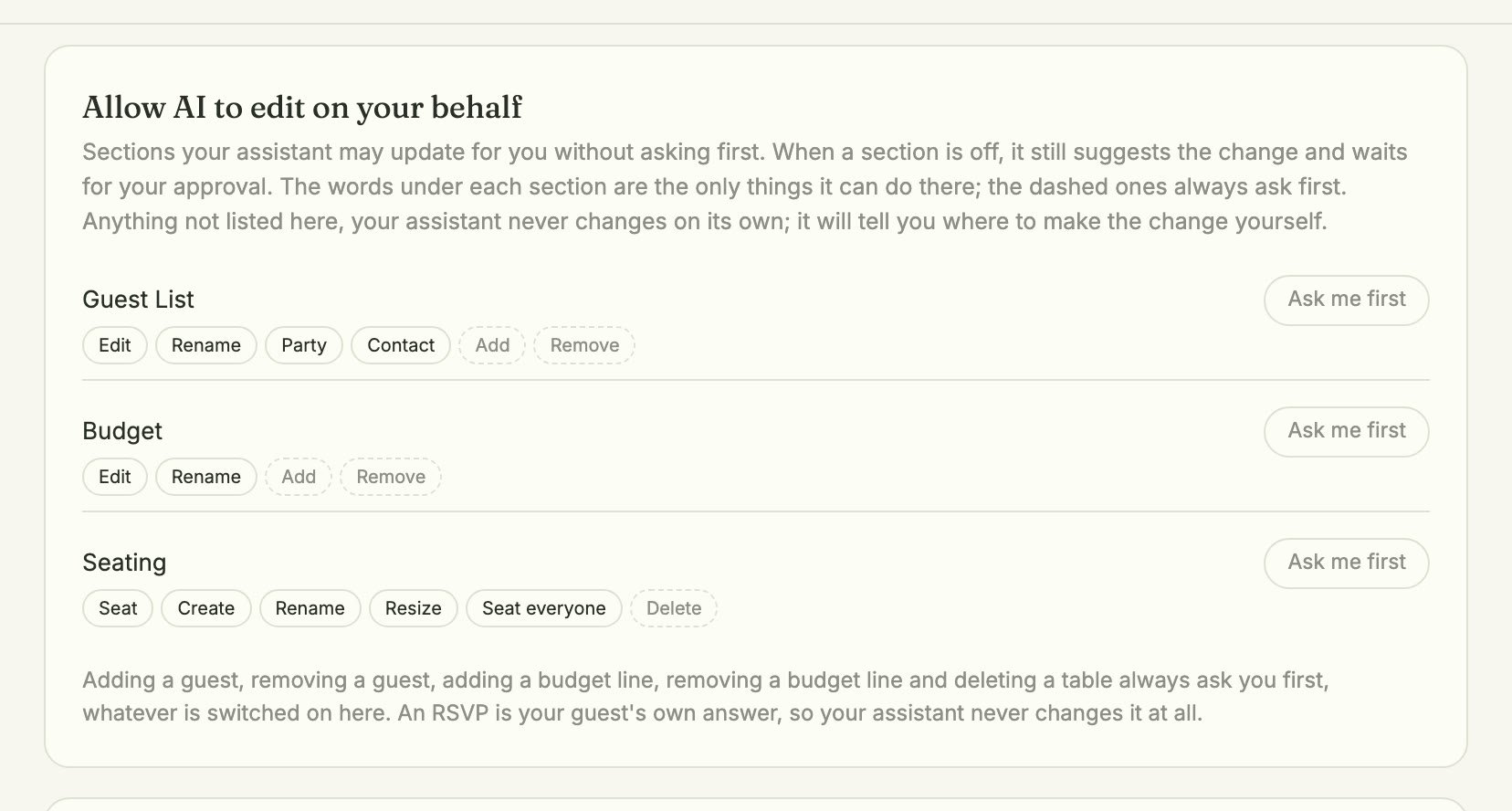 An RSVP is your guest's own answer, so the assistant never changes it.
## Take it with you
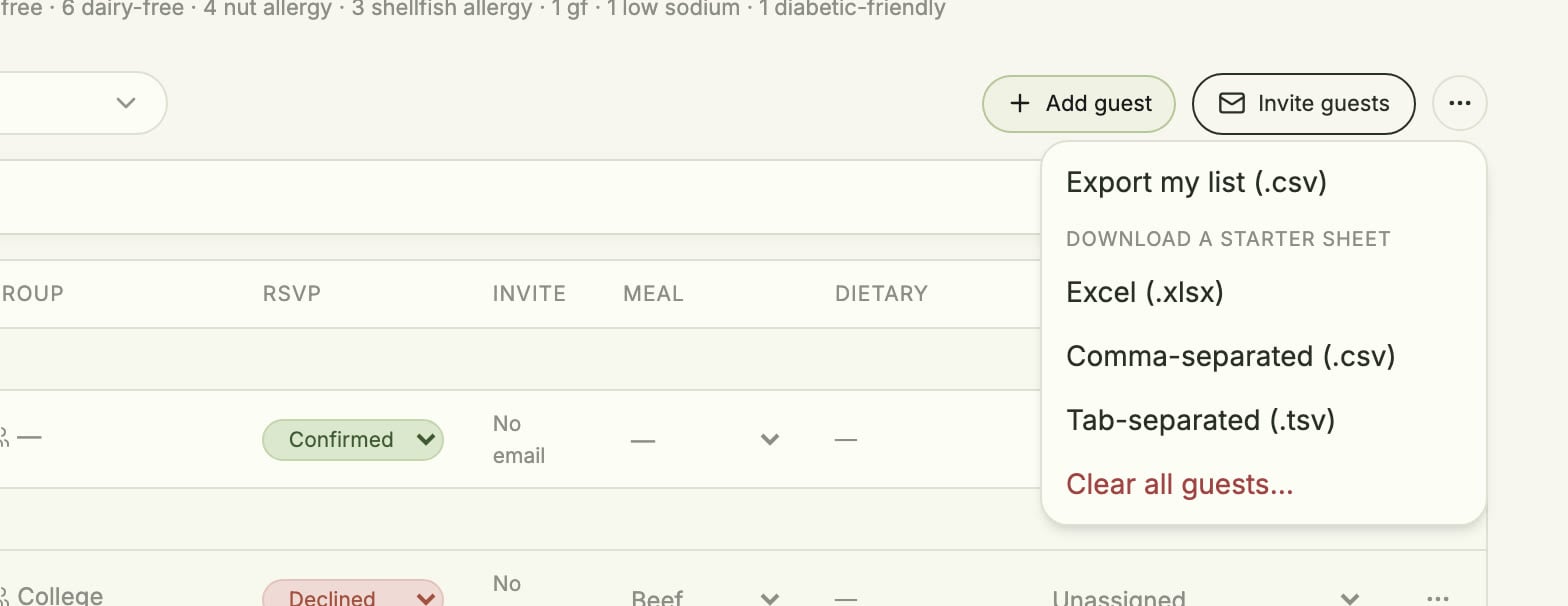
Under the **⋯** menu, **Export my list (.csv)** downloads everyone with every detail, ready for your caterer or stationer. Starting from scratch? Download a starter sheet as Excel, .csv or .tsv, fill it in, and paste it back.
An RSVP is your guest's own answer, so the assistant never changes it.
## Take it with you
Under the **⋯** menu, **Export my list (.csv)** downloads everyone with every detail, ready for your caterer or stationer. Starting from scratch? Download a starter sheet as Excel, .csv or .tsv, fill it in, and paste it back.
 ## Everything, at a glance
Every guest and seating feature in the planner today, and where to find it.
### Guest list
| Feature | Where | Plan |
| - | - | - |
| Add an invitation | Add guest → One person · Guest, Couple or Family, plus-ones, RSVP, meal, side, table, dietary, contact, notes | Free |
| Quick add | The field under search · type a name, press Enter | Free |
| Import a spreadsheet | Add guest → A list of people · paste or upload .xlsx, .csv, .tsv, .txt | Free |
| Search and filters | Search name, group, notes · nine filters | Free |
| Edit in the row | Change meal and table without opening the guest | Free |
| Bulk edit | Tick rows → Assign to table, Set RSVP, Set meal, Set side, Set group, Delete | Free |
| Email invitations | Invite guests → Email each guest | Free |
| One RSVP link | Invite guests → One RSVP link for everyone · Copy, Revoke link, Generate new link | Free |
| Per-guest link and reminder | Row menu ⋯ → Copy invite link, Send reminder | Free |
| Approve RSVPs | RSVP requests → Approve or Approve all | Free |
| Export and starter sheets | ⋯ → Export my list (.csv) · Excel, .csv, .tsv templates | Free |
### Seating
| Feature | Where | Plan |
| - | - | - |
| Seat a party | Tap a name in the tray → Seat at… · full tables can't be picked | Free |
| Move or unseat | Tap a seated guest → another table, or Move back to unassigned | Free |
| Tables | Add a table (10 seats) · tap the name to rename · − / + to resize | Free |
| Filter the tray | Group pills with counts above the names | Free |
### AI assistant
| Feature | Where | Plan |
| - | - | - |
| Add or remove a guest | Ask in plain words · always asks first | 15 prompts a month free |
| Edit guests | Group, side, meal, notes, dietary, name, party size, contact details | 15 prompts a month free |
| Seat, resize, rename, create tables | One card per request · Seat everyone in one tap | 15 prompts a month free |
| Paste a list into chat | Add them to my guest list · Add them with their tables | 15 prompts a month free |
| Approve, undo, or let it act | Allow / Not allow · Undo · Account → Privacy for each section | 15 prompts a month free |
WedThread+ removes the monthly prompt limit.
This documentation is built and hosted on [Mintlify](https://mintlify.com), a developer documentation platform.
## Everything, at a glance
Every guest and seating feature in the planner today, and where to find it.
### Guest list
| Feature | Where | Plan |
| - | - | - |
| Add an invitation | Add guest → One person · Guest, Couple or Family, plus-ones, RSVP, meal, side, table, dietary, contact, notes | Free |
| Quick add | The field under search · type a name, press Enter | Free |
| Import a spreadsheet | Add guest → A list of people · paste or upload .xlsx, .csv, .tsv, .txt | Free |
| Search and filters | Search name, group, notes · nine filters | Free |
| Edit in the row | Change meal and table without opening the guest | Free |
| Bulk edit | Tick rows → Assign to table, Set RSVP, Set meal, Set side, Set group, Delete | Free |
| Email invitations | Invite guests → Email each guest | Free |
| One RSVP link | Invite guests → One RSVP link for everyone · Copy, Revoke link, Generate new link | Free |
| Per-guest link and reminder | Row menu ⋯ → Copy invite link, Send reminder | Free |
| Approve RSVPs | RSVP requests → Approve or Approve all | Free |
| Export and starter sheets | ⋯ → Export my list (.csv) · Excel, .csv, .tsv templates | Free |
### Seating
| Feature | Where | Plan |
| - | - | - |
| Seat a party | Tap a name in the tray → Seat at… · full tables can't be picked | Free |
| Move or unseat | Tap a seated guest → another table, or Move back to unassigned | Free |
| Tables | Add a table (10 seats) · tap the name to rename · − / + to resize | Free |
| Filter the tray | Group pills with counts above the names | Free |
### AI assistant
| Feature | Where | Plan |
| - | - | - |
| Add or remove a guest | Ask in plain words · always asks first | 15 prompts a month free |
| Edit guests | Group, side, meal, notes, dietary, name, party size, contact details | 15 prompts a month free |
| Seat, resize, rename, create tables | One card per request · Seat everyone in one tap | 15 prompts a month free |
| Paste a list into chat | Add them to my guest list · Add them with their tables | 15 prompts a month free |
| Approve, undo, or let it act | Allow / Not allow · Undo · Account → Privacy for each section | 15 prompts a month free |
WedThread+ removes the monthly prompt limit.
This documentation is built and hosted on [Mintlify](https://mintlify.com), a developer documentation platform.